This is the multi-page printable view of this section. Click here to print.
Administration
- 1: Automated Backup
- 2: Command-Line Interface (CLI)
- 2.1: navidrome artwork
- 2.2: navidrome backup
- 2.3: navidrome doctor
- 2.4: navidrome inspect
- 2.5: navidrome missing
- 2.6: navidrome plugin
- 2.7: navidrome pls
- 2.8: navidrome scan
- 2.9: navidrome search
- 2.10: navidrome service
- 2.11: navidrome user
- 3: Security Considerations
- 4: Anonymous Data Collection
1 - Automated Backup
Navidrome version 0.54.x introduces a backup feature that allows the music server’s data to get periodically exported. This guide will walk you through configuring backups using both a configuration file and environment variables, where to locate the backups, and how to restore from a backup.
Note: The backup process ONLY backs up the database (users, play counts, etc.). It does NOT back up the music or the config.
Configuring Backup with config.toml
To configure backups using the navidrome.toml file, insert the following lines to set up backups:
[Backup]
Path = "/path/to/backup/folder"
Count = 7
Schedule =  "0 0 * * *"
- Backup.Path: The directory where backups will be stored. Replace “/path/to/backup/folder” with the desired path.
- Backup.Count: The number of backup files to keep.
- Backup.Schedule:
cron-like syntax to define how often backups occur. The example above schedules a backup every 24 hours at midnight.
Configuring Backup with Environment Variables
Alternatively, you can configure backups using environment variables ND_BACKUP_PATH, ND_BACKUP_SCHEDULE, and ND_BACKUP_COUNT.
environment:
  ND_BACKUP_PATH: /backup
  ND_BACKUP_SCHEDULE: "0 0 * * *"
  ND_BACKUP_COUNT: 7
volumes:
  - ./data:/data
  - ./backup:/backup
Manually Creating a Backup
You can manually create a backup via the navidrome backup create command:
sudo navidrome backup create
If you use docker compose, you can do the same with:
sudo docker compose run <service_name> backup create
# service_name is usually `navidrome`
When manually creating a backup, no prune cycle is run, so none of the existing backups will be pruned. However,
next time the automated backup process runs, the normal prune cycle will run and potentially remove several backups
until the number of backups is down to the configured backup count setting. To manually run a prune cycle, use the
navidrome backup prune command:
sudo navidrome backup prune
If you use docker compose, you can do the same with:
sudo docker compose run <service_name> backup prune
# service_name is usually `navidrome`
Locating Backup
Once configured, Navidrome will store backups in the directory specified by the BackupFolder or ND_BACKUP_PATH setting. To verify the location:
- Check the Config File: If using a configuration file, look for the
Backupconfig node and confirm that all three options are configured. - Check Environment Variables: If using environment variables, ensure that all three variables is set correctly.
Restoring a Backup
When you restore a backup, the existing data in the database is wiped and the data in the backup gets copied into the database.
Note: YOU MUST BE SURE TO RUN THIS COMMAND WHILE THE NAVIDROME APP IS NOT RUNNING/LIVE.
Restore a backup by running the navidrome backup restore command.
Restoring a backup should ONLY be done when the service is NOT running. You’ve been warned.
Additional Resources
For more detailed configuration options and examples, refer to the Navidrome Configuration Options page. This resource provides comprehensive guidance on customizing Navidrome to fit your needs.
By following this guide, you can effectively set up and manage backups for your Navidrome music server, ensuring your data is protected and easily recoverable.
2 - Command-Line Interface (CLI)
Navidrome has a built-in CLI for administration, maintenance, and troubleshooting. Each command has its own page. This page covers what the commands share.
Quick start
Show the list of commands:
navidrome --help
Show help for one command or subcommand:
navidrome <command> --help
navidrome <command> <subcommand> --help
If you run navidrome with no command, it starts the server.
Commands
| Command | What it does |
|---|---|
artwork | Inspect artwork and resolve it again |
backup | Create, prune, and restore database backups |
doctor | Check the database for problems |
inspect | Print the tags of music files as Navidrome reads them |
missing | List missing files and remap them onto existing files |
plugin | List, configure, enable, and disable plugins |
pls | List, export, and import playlists |
scan | Scan the music library |
search | Rebuild the full-text search index |
service | Install and control Navidrome as an OS service |
user | Create, edit, list, and delete users |
Global flags
Every command accepts these flags.
| Flag | Description |
|---|---|
-c, --configfile | Config file to load. Default is ./navidrome.toml |
-n, --nobanner | Don’t print the startup banner |
--musicfolder | Folder with your music |
--datafolder | Folder for application data, such as the database. Navidrome needs write access to it |
--cachefolder | Folder for cache data, such as transcoded audio and images. Navidrome needs write access |
-l, --loglevel | Log level. One of error, info, debug, or trace |
--logfile | File to write logs to. Without it, Navidrome logs to stderr |
Commands read the same config file and ND_ environment variables as the server. Run them with the
same settings as your server, or they will look at a different database. The server also takes
flags such as --port and --address. Run navidrome --help to see them, and see
Configuration Options for every setting.
navidrome -c /etc/navidrome/navidrome.toml --nobanner user list
Running the CLI in Docker
If Navidrome runs in a container, run CLI commands in a container too. That way they use the same
/data, /music, config file, and environment variables as your server.
Docker Compose
Use docker compose run with the name of your Navidrome service. It is usually navidrome:
# Show CLI help
docker compose run --rm navidrome --help

# Run a full scan
docker compose run --rm navidrome scan --full

# List users
docker compose run --rm navidrome user list
To run a command in the container that is already running, use docker compose exec. Put the
navidrome binary name before the command:
docker compose exec navidrome navidrome user list
Docker run
Start a one-off container with the same image tag, volumes, and environment variables as your main Navidrome container:
docker run --rm -it \
  --user $(id -u):$(id -g) \
  -v /path/to/music:/music:ro \
  -v /path/to/data:/data \
  --env-file /path/to/navidrome.env \
  -e ND_CONFIGFILE=/data/navidrome.toml \
  deluan/navidrome:latest \
  user list
-it gives the command a terminal. Commands that ask for input need it, such as user create,
which asks for a password.
Notes and best practices
- Flags change between releases. Run
--helpto see the flags of the version you have. - In scripts, pass
--configfileso the command reads the config you expect. - Stop Navidrome before you run
backup restoreorsearch rebuild. backup restore,backup prune, andmissing fixcan’t be undone. Check the paths and IDs you pass, and runnavidrome backup createfirst.
2.1 - navidrome artwork
The artwork commands tell you why a cover is wrong or an artist image is missing, without opening
the database. They also queue artwork to resolve again, one item at a time or in bulk. See
Artwork resolution for how Navidrome picks an image.
Usage
navidrome artwork <subcommand> [flags]
All commands also accept the global flags.
Artwork kinds
Each kind of artwork has a short code. Not every subcommand accepts every kind.
| Code | Kind | explain | refresh | reprocess | cancel |
|---|---|---|---|---|---|
ar | Artist | ✓ | ✓ | ✓ | ✓ |
al | Album | ✓ | ✓ | ✓ | ✓ |
pl | Playlist | ✓ | ✓ | ✓ | ✓ |
ra | Radio | ✓ | ✓ | ✓ | ✓ |
mf | Media file | ✓ | ✓ | ✓ | |
dc | Disc | ✓ |
reprocess skips media files. A track’s artwork comes only from its embedded tags, and Navidrome
reads them at scan time or the first time someone views the track. Media files still end up in the
queue, so cancel can remove them.
Disc artwork has no stored state. Navidrome resolves it on every request and caches the result by
content, so refresh has nothing to clear.
explain accepts playlists and radios. It shows their stored state and queue row, but they have no
priority chain to walk.
Subcommands
| Subcommand | Description |
|---|---|
status | Show the queue, where artwork comes from, items with no image, and the settings state |
explain | Show why one item got the artwork it has |
refresh | Clear the artwork state of some items and queue them again |
reprocess | Queue artwork in bulk, by kind or by current source |
cancel | Remove pending artwork work in bulk, by kind or by queue priority |
artwork status
Shows the queue by kind and priority, how many items use each source, how many items have no image, and whether artwork settings changed since the last full reprocess.
navidrome artwork status
Flags
This subcommand has no flags.
Output
The Absent block splits items with no image in two. NO IMAGE counts items where every candidate
answered and none had an image. FAILED counts items where Navidrome ran out of retries, for example
because a provider kept timing out. Those are the best candidates for another try.
Absent (resolved, no image found)
  KIND      NO IMAGE  FAILED
  artist    212       37
  album     48        0
Navidrome retries neither group by itself. artwork reprocess --source absent retries both, and
--source failed retries only the ones that gave up.
The Config block compares a fingerprint of six settings: CoverArtPriority, ArtistArtPriority,
ArtistImageFolder, Agents, EnableExternalServices, and EnableM3UExternalAlbumArt.
Config
  State:                fingerprint changed — stored artwork keeps the old resolution; run 'artwork reprocess --all' to apply it
  Stored fingerprint:   7e537a22febc07d3
  Current fingerprint:  c49003a68a82ee68
  Fingerprint inputs (changing any of these makes the stored artwork stale):
    CoverArtPriority:           cover.*, folder.*, front.*, embedded, external
    ...
Changing one of these settings does not update artwork that is already stored. Stored artwork
keeps what the old settings found, and Navidrome logs a warning at startup. Run
artwork reprocess --all to apply the new settings to the whole library. A full reprocess with no
filters also saves the new fingerprint, and the warning goes away.
artwork explain
Shows why one item got the artwork it has. The output has the item’s stored artwork state, its queue row, the settings that decide its artwork, and the priority chain. The chain shows which candidate won and why each one above it lost.
navidrome artwork explain [<kind>] <id> [--live]
You can name the item three ways. Use a bare ID, a full artwork ID such as al-<id>, or a
<kind> <id> pair. For a bare ID, Navidrome looks up the kind itself, so artists, albums, playlists,
radios, and media files don’t need <kind>. Discs have no table to look up, so a disc always needs
its kind. A disc artwork ID is the album ID and the disc number, joined by a colon.
By default, explain prints the chain the server recorded the last time it resolved the item. That
is what really happened, and reading it costs no new lookups. The header shows when Navidrome
recorded it. --live walks the chain again right now, and the header reads Chain (walked now).
Discs have no stored state, so explain always walks a disc’s chain on the spot.
Flags
| Flag | Default | Description |
|---|---|---|
--live | false | Walk the chain again now, with real external lookups, instead of printing the recorded chain. Also starts plugin agents, which may open external connections |
Examples
# Explain an album by its bare ID
navidrome artwork explain 6XTD9naRGpIrZLoA99pH1r

# The same album, by its full artwork ID
navidrome artwork explain al-6XTD9naRGpIrZLoA99pH1r

# Walk the chain again now
navidrome artwork explain al 6XTD9naRGpIrZLoA99pH1r --live

# Explain disc 2 of an album
navidrome artwork explain dc 6XTD9naRGpIrZLoA99pH1r:2
Output
Item
  Kind:  album (al)
  ID:    6XTD9naRGpIrZLoA99pH1r
  Name:  OK Computer

Stored
  Source:        folder
  Hash:          fa90ba01c3d4e5f6
  Source path:   /music/Radiohead/OK Computer/cover.jpg
  Attempted at:  2026-04-19T03:22:11Z

Queue
  (not queued)

Config
  CoverArtPriority:  cover.*, folder.*, front.*, embedded, external
  Agents:            lastfm, spotify

Chain (recorded 2026-04-19T03:22:11Z)
  CANDIDATE  OUTCOME  DETAIL
  cover.*    hit      /music/Radiohead/OK Computer/cover.jpg

Result
  resolved from folder
The Chain table uses these outcomes:
| Outcome | Meaning |
|---|---|
hit | This candidate produced the image |
miss | Navidrome looked and found nothing |
unreadable | A file exists, but Navidrome could not open or decode it |
skipped | Navidrome never tried this candidate. DETAIL says why |
error | A lookup or processing step failed. DETAIL has the error |
Watch for unreadable. It points to a damaged file you can fix, while miss means nothing was
there. Stored state alone can’t tell the two apart.
When resolution fails, the Queue block shows why. While Navidrome is still retrying,
Last attempt failed lists the steps of the latest attempt. After it stops retrying,
Gave up after lists the steps of the final one. If Navidrome found a candidate but could not
process it, or an external lookup failed, Result says indeterminate rather than not resolved.
Nothing proved the item has no artwork, and a retry may still find some.
Older Navidrome versions did not record chains, and explain tells you when it resolved an item
before recording started. Run it with --live to see the chain. A live run is also worth comparing
against Stored. If stored says external:lastfm and the live walk resolves from folder, the
stored state is stale. Run artwork refresh to fix it.
By default explain makes no external requests, because it reads the recorded chain. --live walks
the chain with real lookups. This matters most when you are debugging rate limiting, since a
diagnostic run shouldn’t add to the load on the provider.
explain for artists and albums, and reprocess for its lookup estimate, load the plugins named in
Agents. They load only those, because a plugin that isn’t a configured agent can’t supply an
image. Loading a plugin creates the services its manifest asks for, such as a key-value store.
Plugins load but don’t start unless you pass explain --live. With it, each plugin runs its
initialization, which may open external connections.
artwork refresh
Clears the stored artwork state of each item and queues it at the highest priority. Admins can do the same for one album or artist in the web UI, with Refresh Metadata in the context menu.
navidrome artwork refresh [<kind>] <id>...
IDs work the same as in explain. Use bare IDs, full artwork IDs like al-<id>, or one <kind>
followed by several IDs of that kind. Bare and full IDs carry their own kind, so you can mix kinds in
one call. If Navidrome can’t find an ID, it reports the ID, skips it, and refreshes the rest.
The old state is gone, so the item shows a placeholder until Navidrome resolves it again.
Flags
This subcommand has no flags.
Examples
# Refresh one album by its bare ID
navidrome artwork refresh 6XTD9naRGpIrZLoA99pH1r

# Refresh an album and an artist in one call
navidrome artwork refresh al-6XTD9naRGpIrZLoA99pH1r ar-1dfeR4HaWDbWqFHLkxsg1d

# Refresh two albums
navidrome artwork refresh al 1dfeR4HaWDbWqFHLkxsg1d 6XTD9naRGpIrZLoA99pH1r
artwork reprocess
Queues artwork in bulk. reprocess is the only way to retry absent artwork, because Navidrome never
goes back to an item with no image by itself. It is also how you apply an artwork setting change to
the whole library. See artwork status.
navidrome artwork reprocess [--kind ...] [--source ...] [--all] [--dry-run] [-y]
You must pass --kind, --source, or --all. Without one, the command fails, so you can’t
resolve the whole library again by accident. --source alone covers every kind. If you name a
source that no item uses, the command fails and lists the sources in use.
Before it queues anything, the command prints a breakdown and an estimate of external lookups, then asks you to confirm. A running server works through queued items in the background. A stopped server starts on them at its next startup.
Flags
| Flag | Default | Description |
|---|---|---|
--kind | Kinds to reprocess: ar, al, pl, ra. Repeatable | |
--source | Only items that resolve from these sources now, such as folder, embedded, external:lastfm, absent, or failed. Repeatable | |
--all | false | Reprocess every kind |
--dry-run | false | Show what the command would queue, then exit without queueing |
-y, --yes | false | Skip the confirmation prompt |
failed selects absent items where Navidrome gave up after its retries.
Examples
# Preview artists that use Last.fm images now
navidrome artwork reprocess --kind ar --source external:lastfm --dry-run

# Retry only the items that gave up, for example after a provider outage
navidrome artwork reprocess --source failed

# Retry every item that has no image
navidrome artwork reprocess --source absent

# Apply a changed artwork setting to the whole library
navidrome artwork reprocess --all
Unlike refresh, reprocess does not clear existing artwork first. Images stay in place until new
ones replace them. It can still send a lot of external requests, so run it with --dry-run first
and read the estimate.
artwork cancel
Removes pending artwork work from the queue. reprocess fills the queue, and cancel empties it.
navidrome artwork cancel [--kind ...] [--priority ...] [--all] [--dry-run] [-y]
You must pass --kind, --priority, or --all. Like reprocess, the command prints a breakdown
and asks you to confirm before it deletes anything.
Use --priority to call off a bulk job and keep everything else. reprocess queues items at
recheck priority, and on a large library that can mean tens of thousands of external lookups.
Cancel recheck to stop that job. Items you refreshed by hand sit at bump, so they stay queued.
Queue priorities, highest first:
| Priority | Queued by |
|---|---|
bump | artwork refresh, a request for an item with no artwork state, or saving a radio |
scan | The scanner, for items it added or changed |
backfill | Nothing in current versions. You can still cancel rows an older version queued |
recheck | artwork reprocess, and the hourly check for items with no artwork state |
Flags
| Flag | Default | Description |
|---|---|---|
--kind | Kinds to cancel: ar, al, pl, ra, mf. Repeatable | |
--priority | Only rows queued at these priorities: bump, scan, backfill, recheck. Repeatable | |
--all | false | Cancel every kind at every priority |
--dry-run | false | Show what the command would cancel, then exit without cancelling |
-y, --yes | false | Skip the confirmation prompt |
Examples
# See what is queued at recheck priority
navidrome artwork cancel --priority recheck --dry-run

# Call off a bulk reprocess and keep manual refreshes queued
navidrome artwork cancel --priority recheck

# Empty the queue
navidrome artwork cancel --all --yes
cancel only touches the queue. It leaves resolved artwork and the state explain reports alone.
The worker keeps running, and items the server already picked up still finish. The hourly check can
queue an item with no artwork state again, so a cancel lasts longest for items that already have
artwork. The command applies the selection again when you confirm, so it also cancels anything
queued after the preview.
2.2 - navidrome backup
The backup commands make a copy of the Navidrome database, delete old copies, and restore a copy.
Navidrome can also make backups on a schedule. See Automated Backup.
Backups go to the folder in the Backup.Path setting. Each backup file has a name like
navidrome_backup_2026.04.01_04.00.00.db, with the date and time it was made.
Usage
navidrome backup <subcommand> [flags]
The alias bkp works too, so navidrome bkp create is the same as navidrome backup create.
All commands also accept the global flags.
Subcommands
| Subcommand | Description |
|---|---|
create | Make a backup of the database now |
prune | Delete old backups and keep the newest ones |
restore | Replace the database with a backup |
backup create
Makes a backup of the database. This command doesn’t delete old backups, even when you have more
than Backup.Count. Run backup prune for that.
navidrome backup create [-d <folder>]
Flags
| Flag | Default | Description |
|---|---|---|
-d, --backup-dir | Backup.Path | Folder to write the backup to |
Examples
# Back up to the folder in Backup.Path
navidrome backup create

# Back up to another folder
navidrome backup create --backup-dir /mnt/backups/navidrome
backup prune
Deletes old backups and keeps the newest ones. It only looks at files named like
navidrome_backup_<date>_<time>.db, and leaves other files in the folder alone.
navidrome backup prune [-d <folder>] [-k <count>] [-f]
By default, prune keeps as many backups as Backup.Count. If the number to keep is 0, prune
deletes every backup. It asks you to type YES first, unless you pass --force.
Flags
| Flag | Default | Description |
|---|---|---|
-d, --backup-dir | Backup.Path | Folder with the backups |
-k, --keep-count | Backup.Count | Number of backups to keep. 0 deletes all backups |
-f, --force | false | Don’t ask for confirmation when you delete all backups |
Examples
# Keep the number of backups set in Backup.Count
navidrome backup prune

# Keep only the newest 7 backups
navidrome backup prune --keep-count 7

# Delete all backups without a prompt
navidrome backup prune --keep-count 0 --force
backup restore
Replaces the current database with a backup. It asks you to type YES first, unless you pass
--force.
navidrome backup restore --backup-file <file> [-f]
If --backup-file is a file name or a relative path, the command looks for it in the Backup.Path
folder. An absolute path works from anywhere.
Flags
| Flag | Default | Description |
|---|---|---|
-b, --backup-file | Backup file to restore. Required | |
-f, --force | false | Skip the confirmation prompt |
Examples
# Restore a backup from the Backup.Path folder
navidrome backup restore --backup-file navidrome_backup_2026.04.01_04.00.00.db

# Restore a backup from another folder
navidrome backup restore --backup-file /mnt/backups/navidrome/navidrome_backup_2026.04.01_04.00.00.db

# With Docker Compose, stop the server first
docker compose stop navidrome
docker compose run --rm navidrome backup restore --backup-file navidrome_backup_2026.04.01_04.00.00.db
docker compose start navidrome
Stop Navidrome before you run navidrome backup restore. Everything that changed after the backup
is lost, such as new users, play counts, and playlists.
2.3 - navidrome doctor
The doctor command checks the database for problems. It only reads the database and never changes
your data. Run it when Navidrome logs errors such as database disk image is malformed, or when
every scan fails.
Usage
navidrome doctor
Flags
doctor has no flags of its own. It accepts the global flags.
Examples
# Check the database
navidrome doctor

# Stop a script when the database has problems
navidrome doctor || exit 1

# Check the database with Docker Compose
docker compose run --rm navidrome doctor
What it checks
doctor runs two checks.
- Integrity check. Looks for corruption in the database file. If the damage is only in the
search index,
doctortells you to runnavidrome search rebuild. Damage anywhere else can’t be fixed automatically. Restore a backup withnavidrome backup restore, or try SQLite’s.recovercommand. - Foreign key check. Looks for orphaned rows, which point to rows that no longer exist. This is
not corruption.
navidrome scan -fclears some of them in library data, and you have to delete the rest by hand.
The integrity check stops after a fixed number of problems. When it hits that limit, the damage may
be bigger than the list shows, and doctor won’t suggest a search index rebuild.
Output
A healthy database looks like this:
Checking database integrity...
Integrity check passed.
Checking foreign keys...
Foreign key check passed.
Database is healthy.
doctor exits with status 1 when a check finds a problem or can’t finish, so you can use it in
scripts.
2.4 - navidrome inspect
The inspect command prints the tags of one or more music files, the way Navidrome reads them. Use
it when an album shows up split in two, or a tag you set doesn’t appear in Navidrome. For each file
it prints the raw tags stored in the file and the mapped tags Navidrome uses. See
Tagging for how Navidrome maps tags.
Usage
navidrome inspect [flags] <file> [<file>...]
All commands also accept the global flags.
Flags
| Flag | Default | Description |
|---|---|---|
-f, --format | jsonindent | Output format. One of pretty, toml, yaml, json, jsonindent |
pretty prints a text block for each file, with the raw and mapped tags in TOML. json prints
everything on one line, and jsonindent prints indented JSON.
Examples
# Print the tags of one file as indented JSON
navidrome inspect "/music/Artist/Album/01 Track.flac"

# Print the tags of every MP3 in a folder, as YAML
navidrome inspect --format yaml /music/Artist/Album/*.mp3

# Easy-to-read output
navidrome inspect --format pretty "/music/Artist/Album/01 Track.flac"

# Inspect a file with Docker Compose. Use the path inside the container
docker compose run --rm navidrome inspect "/music/Artist/Album/01 Track.flac"
Notes
inspect skips files that are not audio files, and files it can’t read. It logs a warning for each
one and goes on with the rest.
2.5 - navidrome missing
The missing commands list files marked as missing, and remap a missing file onto an existing one.
The scanner marks a file missing when it no longer finds it on disk. When you rename or move a file,
the scanner normally reconnects it and carries over play counts, ratings, starred status, and
bookmarks. If the scanner can’t match the two files, the old entry stays missing and the new file
starts with no history. missing fix does that remap by hand.
See Missing Files for why files go missing, how to review them in the web UI, and how to purge them for good.
Usage
navidrome missing <subcommand> [flags]
All commands also accept the global flags.
Subcommands
| Subcommand | Description |
|---|---|
list | List all files marked as missing |
fix | Remap a missing file onto an existing file |
missing list
Lists all files marked as missing. The CSV output has these columns: id, library id, title, album, artist, and path.
navidrome missing list [-f csv|json]
Flags
| Flag | Default | Description |
|---|---|---|
-f, --format | csv | Output format. One of csv, json |
Examples
# List missing files as CSV
navidrome missing list

# List missing files as JSON
navidrome missing list --format json
missing fix
Moves the data of a missing file onto an existing file.
navidrome missing fix <missing> <target>
The first argument is the missing file. The second is the file that gets its data. Each argument can
be a media file ID, a library-relative path, or a libraryID:path pair. Use an ID or a
libraryID:path pair when the same path exists in more than one library.
Flags
This subcommand has no flags.
Examples
# Remap by library-relative path
navidrome missing fix "Rock/Old Album/track01.mp3" "Rock/New Album/track01.mp3"

# Remap by media file ID
navidrome missing fix 3Unsdwsei9i2ZvRtFKRfwA 7KpqZmXe4Ab2NvTuGHRcxQ

# Pick the library with a libraryID:path pair
navidrome missing fix 2:"Podcasts/ep01.mp3" 2:"Podcasts/episode-01.mp3"
The target file must already be in the library and must not be missing. Run a scan first if you
just added it. You can’t undo the remap, so make a backup with navidrome backup create before you
fix many files.
2.6 - navidrome plugin
The plugin commands list, check, configure, enable, and disable plugins. They do the same things as
the plugin screens in the web UI. See Plugins for how the plugin
system works.
Usage
navidrome plugin <subcommand> [flags]
All commands also accept the global flags.
Commands that work with installed plugins need the plugin system enabled. Plugins.Enabled is on
by default. You can still use plugin info and plugin validate on a .ndp package file when the
plugin system is disabled.
Subcommands
| Subcommand | Description |
|---|---|
list | List installed plugins |
info | Show details for an installed plugin or a .ndp package |
validate | Check the manifest of an installed plugin or a .ndp package |
enable | Enable a plugin |
disable | Disable a plugin |
edit | Change a plugin’s config, permissions, or both |
rescan | Find plugins added to or removed from the plugins folder |
plugin list
Lists installed plugins.
navidrome plugin list [-f table|csv|json]
Flags
| Flag | Default | Description |
|---|---|---|
-f, --format | table | Output format. One of table, csv, json |
Examples
# List installed plugins as a table
navidrome plugin list

# List installed plugins as JSON
navidrome plugin list -f json
plugin info
Shows details for an installed plugin or a .ndp package file. An argument that ends in .ndp is a
package file. Anything else is the ID of an installed plugin.
navidrome plugin info <id|file.ndp> [-f text|json]
Flags
| Flag | Default | Description |
|---|---|---|
-f, --format | text | Output format. One of text, json |
Examples
# Show details for an installed plugin
navidrome plugin info my-plugin

# Check a downloaded package before you install it
navidrome plugin info ./my-plugin-1.2.0.ndp
plugin validate
Checks the manifest of an installed plugin or a .ndp package file. For an installed plugin, it
also checks the stored configuration when one exists. It reads the argument the same way as info.
navidrome plugin validate <id|file.ndp>
Flags
This subcommand has no flags.
Examples
# Check an installed plugin
navidrome plugin validate my-plugin

# Check a package file
navidrome plugin validate ./my-plugin-1.2.0.ndp
plugin enable
Enables an installed plugin.
navidrome plugin enable <id>
Flags
This subcommand has no flags.
Examples
navidrome plugin enable my-plugin
plugin disable
Disables an installed plugin.
navidrome plugin disable <id>
Flags
This subcommand has no flags.
Examples
navidrome plugin disable my-plugin
plugin edit
Changes a plugin’s config, the users and libraries it can access, and whether it can write to libraries. Pass at least one flag. The flags come in pairs, and you can’t use both flags of a pair in one call.
navidrome plugin edit <id> [flags]
Flags
| Flag | Default | Description |
|---|---|---|
--config | Plugin config as a JSON string | |
--config-file | File to read the plugin config JSON from. Use - to read from stdin | |
--users | Usernames the plugin can access, as alice,bob or ["alice","bob"] | |
--all-users | false | Give the plugin access to all users |
--libraries | Library IDs the plugin can access, as 1,2 or [1,2] | |
--all-libraries | false | Give the plugin access to all libraries |
--write-access | false | Let the plugin write to libraries |
--no-write-access | false | Don’t let the plugin write to libraries |
The pairs are --config and --config-file, --users and --all-users, --libraries and
--all-libraries, and --write-access and --no-write-access.
Examples
# Set a plugin's config
navidrome plugin edit my-plugin --config '{"apiKey":"abc123"}'

# Read the config from stdin
cat config.json | navidrome plugin edit my-plugin --config-file -

# Give access to all users and let the plugin write to libraries
navidrome plugin edit my-plugin --all-users --write-access

# Limit the plugin to two libraries
navidrome plugin edit my-plugin --libraries 1,2
plugin rescan
Looks in the plugins folder again and picks up plugins you added or removed. The folder comes from
Plugins.Folder, which defaults to the plugins folder inside DataFolder.
navidrome plugin rescan
Flags
This subcommand has no flags.
Examples
# Pick up a new .ndp file you copied into the plugins folder
navidrome plugin rescan
2.7 - navidrome pls
The pls commands list playlists, export them to M3U files, and import M3U files as playlists.
Navidrome also imports M3U files it finds in your library when it scans. You don’t need
pls import for those. See AutoImportPlaylists and PlaylistsPath in
Configuration Options.
Usage
navidrome pls --playlist <name-or-id> [--output <file>]
navidrome pls <subcommand> [flags]
pls with no subcommand exports one playlist. pls export does the same, and it
can also export many playlists at once.
All commands also accept the global flags.
Flags
These flags are for pls with no subcommand.
| Flag | Default | Description |
|---|---|---|
-p, --playlist | Name or ID of the playlist to export. Required | |
-o, --output | File to write the playlist to. Without it, or with -, prints to stdout |
Examples
# Print a playlist to stdout
navidrome pls --playlist "Road Trip Mix"

# Write a playlist to a file
navidrome pls --playlist "Road Trip Mix" --output ./road-trip.m3u8
Subcommands
| Subcommand | Description |
|---|---|
list | List playlists |
export | Export playlists to M3U files |
import | Import M3U files as playlists |
pls list
Lists playlists, sorted by owner. The CSV output has these columns: playlist id, playlist name, owner id, owner name, and public.
navidrome pls list [-u <user>] [-f csv|json]
Flags
| Flag | Default | Description |
|---|---|---|
-u, --user | Only list playlists of this username or user ID | |
-f, --format | csv | Output format. One of csv, json |
Examples
# List all playlists as CSV
navidrome pls list

# List the playlists of one user as JSON
navidrome pls list --user alice --format json
pls export
Exports one playlist or many playlists to M3U files.
navidrome pls export [-p <playlist>] [-u <user>] [-o <folder>]
What it does depends on the flags you pass:
- With
--playlistand no--output, it prints that playlist to stdout. - With
--playlistand--output, it writes that playlist to a file in the output folder. - Without
--playlist, it writes every playlist to the output folder. Add--userto export only the playlists of one user.--outputis required here.
--output is a folder, and the folder must already exist. This is different from pls --output,
which takes a file. Each file gets the name of its playlist, such as Road Trip Mix.m3u. If two
playlists have the same name, Navidrome adds the first 6 characters of the playlist ID to the file
name, such as Road Trip Mix_3Unsdw.m3u.
Flags
| Flag | Default | Description |
|---|---|---|
-p, --playlist | Name or ID of one playlist to export | |
-o, --output | Folder to write the M3U files to | |
-u, --user | Only export playlists of this username or user ID |
Examples
# Export all playlists to a folder
navidrome pls export --output ./playlists

# Export the playlists of one user
navidrome pls export --user alice --output ./playlists

# Export one playlist to a folder
navidrome pls export --playlist "Road Trip Mix" --output ./playlists
pls import
Imports one or more M3U files as playlists. Navidrome matches each entry in the file to a track in your library. For each file, it prints how many tracks matched and how many it didn’t find. If one file fails, the command prints the error and goes on with the rest.
navidrome pls import [-u <user>] [--sync] <file> [<file>...]
By default, the first admin user owns the imported playlists. Pass --user to pick another owner.
A synced playlist follows its M3U file. You can’t edit its tracks in Navidrome. If the file is in
your library, the scanner updates the playlist when the file changes. Without --sync, the
playlist keeps the tracks from the import, and you can edit them.
Flags
| Flag | Default | Description |
|---|---|---|
-u, --user | First admin | Username or user ID of the playlist owner |
--sync | false | Mark the imported playlists as synced |
Examples
# Import one file
navidrome pls import ./road-trip.m3u

# Import many files for one user
navidrome pls import --user alice ./playlists/*.m3u

# Import a playlist from the library and keep it synced with the file
navidrome pls import --sync "/music/Playlists/Favorites.m3u"

# With Docker Compose, mount the files so the container can read them
docker compose run --rm -v ./playlists:/playlists navidrome pls import /playlists/road-trip.m3u
2.8 - navidrome scan
The scan command scans your music library for new, changed, and removed files. Use it to start a
scan from a script, to force a full scan, or to scan only some folders.
Usage
navidrome scan [flags]
All commands also accept the global flags.
Flags
| Flag | Default | Description |
|---|---|---|
-f, --full | false | Check all folders and ignore modification times |
-t, --target | Scan only this folder, as a libraryID:folderPath pair. Repeatable | |
--target-file | File with folders to scan, one libraryID:folderPath pair per line |
Navidrome also has a --subprocess flag. The server uses it to run scans, so don’t pass it
yourself.
Examples
# Scan for changes
navidrome scan

# Full scan
navidrome scan --full

# Scan only two folders, in two libraries
navidrome scan -t 1:Music/Rock -t 2:Audiobooks

# Read the folders to scan from a file
navidrome scan --target-file ./scan-targets.txt

# Full scan with Docker Compose
docker compose run --rm navidrome scan --full
Scan targets
A target is a library ID and a folder in that library, joined by a colon. The folder path is
relative to the root folder of the library. For example, 1:Music/Rock is the Music/Rock folder
in library 1.
To find library IDs, run navidrome user list. Its libraries column shows each library as
id:path. See Multi-Library for how libraries work.
A target file has one target on each line. The command skips empty lines. If you pass both
--target-file and --target, the command uses only the file.
2.9 - navidrome search
The search command maintains the full-text search index.
Usage
navidrome search <subcommand> [flags]
All commands also accept the global flags.
Subcommands
| Subcommand | Description |
|---|---|
rebuild | Delete the search index and build it again from the library data |
search rebuild
Deletes the full-text search index and builds it again from your library data. The index only holds copies of data stored elsewhere in the database, so you lose nothing. Navidrome checks the new index before it saves it.
navidrome search rebuild [-f]
Use it in two cases:
navidrome doctorreports that the corruption is limited to the search index.- Search misses items that are in your library.
doctorcan’t detect an index that is out of sync but not corrupt, so a rebuild is the thing to try.
Without --force, the command asks you to type YES to continue.
Flags
| Flag | Default | Description |
|---|---|---|
-f, --force | false | Skip the confirmation prompt |
Examples
# Check the database, then rebuild a corrupted search index
navidrome doctor
navidrome search rebuild

# With Docker Compose, stop the server first
docker compose stop navidrome
docker compose run --rm navidrome search rebuild
docker compose start navidrome
Stop Navidrome before you run navidrome search rebuild.
2.10 - navidrome service
The service commands install Navidrome as a service in your OS service manager, then start, stop,
and check it. The service manager is systemd on most Linux systems, launchd on macOS, and the
Service Control Manager on Windows. navidrome service --help shows the one your system uses.
The installation guides for Linux, macOS, and Windows show the full setup.
Usage
navidrome service <subcommand> [flags]
The alias svc works too, so navidrome svc status is the same as navidrome service status.
All commands also accept the global flags.
Subcommands
| Subcommand | Description |
|---|---|
install | Install Navidrome as a service |
uninstall | Remove the service |
start | Start the service |
stop | Stop the service |
status | Show whether the service is running |
execute | Run Navidrome in the foreground, as the service manager does |
service install
Installs Navidrome as a system service. Before it installs, it prints the working directory, music folder, data folder, and log location the service will use. You usually need root or Administrator rights to install a service.
navidrome service install [-u <user>] [-w <folder>] [-c <config file>]
If you pass --configfile, the service uses that config file. Without it, the service looks for
navidrome.toml in its working directory. The service manager restarts Navidrome if it fails.
Logs go to the data folder, unless you set LogFile.
On Linux, the systemd unit also reads environment variables from /etc/sysconfig/navidrome if that
file exists.
Flags
| Flag | Default | Description |
|---|---|---|
-u, --user | OS user that runs the service | |
-w, --working-directory | Folder of the navidrome binary | Working directory of the service |
Examples
# Install the service with a config file, run by the navidrome user
sudo navidrome service install --user navidrome --configfile /etc/navidrome/navidrome.toml

# Install with a different working directory
sudo navidrome svc install --working-directory /var/lib/navidrome
service uninstall
Removes the service from the service manager. Your music and data folders stay as they are.
navidrome service uninstall
Flags
This subcommand has no flags.
Examples
sudo navidrome svc uninstall
service start
Starts the service.
navidrome service start
Flags
This subcommand has no flags.
Examples
sudo navidrome svc start
service stop
Stops the service. Navidrome gets 10 seconds to shut down cleanly.
navidrome service stop
Flags
This subcommand has no flags.
Examples
sudo navidrome svc stop
service status
Prints whether the service is Running, Stopped, or Unknown.
navidrome service status
Flags
This subcommand has no flags.
Examples
navidrome svc status
service execute
Runs Navidrome in the foreground as a service. The service manager runs this command to start
Navidrome, so you don’t need it. To run Navidrome in the foreground yourself, run navidrome.
navidrome service execute
Flags
This subcommand has no flags.
The service command is for native installs. In Docker, Compose, or Kubernetes, the container
platform starts and stops Navidrome.
2.11 - navidrome user
The user commands create, edit, list, and delete Navidrome users.
These commands need at least one admin user in the database. On a new install, create the first admin in the web UI.
Usage
navidrome user <subcommand> [flags]
All commands also accept the global flags.
Subcommands
| Subcommand | Alias | Description |
|---|---|---|
create | c | Create a user |
edit | e | Change a user |
list | List users | |
delete | d | Delete a user |
user create
Creates a user. The command asks for the password twice. Press Enter with no password to cancel.
There is no flag for the password, so run the command in a terminal. With docker run, add -it.
navidrome user create --username <username> [flags]
Without --library-ids, the user can access all libraries. Admins can always access all libraries,
so the command ignores --library-ids when you pass --admin. If a library ID doesn’t exist, the
command fails and creates nothing.
Flags
| Flag | Default | Description |
|---|---|---|
-u, --username | Username to log in with. Required | |
--name | The username | Display name of the user |
-e, --email | Email address of the user | |
-a, --admin | false | Make the user an admin |
-i, --library-ids | All libraries | Comma-separated IDs of the libraries the user can access |
Examples
# Create an admin user
navidrome user create --username alice --email [email protected] --admin

# Create a regular user who can access libraries 1 and 3 only
navidrome user create --username bob --name "Bob Smith" --library-ids 1,3
user edit
Changes a user. Find the user by username or ID, then pass the flags for what you want to change. If nothing changes, the command says so.
navidrome user edit --user <username-or-id> [flags]
Some flags come in pairs, and you can’t use both flags of a pair in one call. The pairs are
--set-admin and --set-regular, --email and --remove-email, and --name and
--remove-name.
--set-admin gives the user access to all libraries. --set-regular keeps the libraries the user
has, so add --library-ids to limit them.
Flags
| Flag | Default | Description |
|---|---|---|
-u, --user | Username or ID of the user to change. Required | |
--set-admin | false | Make the user an admin |
--set-regular | false | Make the user a regular user |
--set-password | false | Ask for a new password |
-e, --email | New email address | |
--remove-email | false | Clear the email address |
--name | New display name | |
--remove-name | false | Clear the display name |
-i, --library-ids | Comma-separated IDs of the libraries the user can access. Replaces the current list. Ignored with --set-admin |
Examples
# Make an admin a regular user
navidrome user edit --user alice --set-regular

# Change a password. The command asks for the new one
navidrome user edit --user alice --set-password

# Limit a user to libraries 1 and 2
navidrome user edit --user bob --library-ids 1,2
user list
Lists all users. The CSV output has these columns: user id, username, user’s name, user email,
admin, created at, updated at, last access, last login, and libraries. The libraries column lists
each library as id:path, separated by |.
navidrome user list [-f csv|json]
Flags
| Flag | Default | Description |
|---|---|---|
-f, --format | csv | Output format. One of csv, json |
Examples
# List users as CSV
navidrome user list

# List users as JSON
navidrome user list --format json
user delete
Deletes a user. The command doesn’t ask for confirmation. It won’t delete the last user.
navidrome user delete --user <username-or-id>
Flags
| Flag | Default | Description |
|---|---|---|
-u, --user | Username or ID of the user to delete. Required |
Examples
navidrome user delete --user alice
3 - Security Considerations
Permissions
You should NOT run Navidrome as root.
Ideally you should have it running under its own user and enable the EnforceNonRootUser configuration option.
Navidrome only needs read-only access to the Music Folder, and read-write permissions to the Data Folder.
Encrypted passwords
To be able to keep compatibility with the Subsonic API and its clients, Navidrome needs to store user’s passwords in its database. By default, Navidrome encrypts the passwords in the DB with a shared encryption key, just for the sake of obfuscation as this key can be easily found in the codebase.
This key can be overridden by the config option PasswordEncryptionKey. Once this option is set and Navidrome is restarted, it will re-encrypt all passwords with this new key. This is a one-time only configuration, and after this point the config option cannot be changed anymore or else users won’t be able to authenticate.
Network configuration
Even though Navidrome comes with an embedded, full-featured HTTP server, you should seriously consider running it behind a reverse proxy (Ex: Caddy, Nginx, Traefik, Apache) for added security, including setting up SSL. There are tons of good resources on the web on how to properly setup a reverse proxy.
When using Navidrome in such configuration, you may want to prevent Navidrome from listening to all IPs configured
in your computer, and only listen to localhost. This can be achieved by setting the Address flag to localhost.
Externalized authentication
When externalized authentication is enabled, Navidrome trusts the authenticated user header (configured with the ExtAuth.UserHeader option, by default Remote-User).
In principle, the authenticated user header is ignored if requests don’t come from a reverse proxy trusted with the ExtAuth.TrustedSources option. This check can however be fooled by requests with a forged source IP address if the reverse proxy can be bypassed (e.g. a request sent by a compromised service running next to Navidrome).
When using externalized authentication in a fresh installation, the first user created through this method will automatically be granted admin privileges, consistent with the behavior when creating the first user through the web interface.
Listening on a UNIX socket
If you are listening on a UNIX socket (Address option) and enable externalized authentication (ExtAuth.TrustedSources configured with the special value @), any process able to write to the socket can forge authenticated requests.
Make sure to properly protect the socket with user access controls (see the UnixSocketPerm option).
Reverse proxy with a dynamic IP address
Navidrome does not support resolving hostnames in the ExtAuth.TrustedSources configuration option.
In scenarios where the reverse proxy has a dynamic IP address, for example when you use docker, you might consider using 0.0.0.0/0 to allow requests from the reverse proxy. This essentially disables the check, so you have to make sure that only the reverse proxy can send requests to Navidrome.
In particular with docker and docker-compose, without extra configuration containers are usually placed on the same default network and can therefore freely communicate.
Potential HPP vulnerability
When externalized authentication is enabled, Navidrome currently does not disable the other authentication methods. This could potentially create an HTTP Parameter Pollution vulnerability if the reverse proxy is misconfigured, or due to a bug or oversight in Navidrome.
You should make sure that the authenticated user header is always set for requests against protected endpoints. As a rule of thumb, for an externalized authentication setup, the only endpoints that are not protected are /rest/* (depending on whether your proxy can handle the subsonic authentication scheme) and /share/*.
Transcoding configuration
To configure transcoding, Navidrome’s WebUI provide a screen that allows you to edit existing transcoding configurations and to add new ones. That is similar to other music servers available in the market that provide transcoding on-demand.
The issue with this is that it potentially allows an attacker to run any command in your server. This married with the fact that some Navidrome installations don’t use SSL and/or run it as a super-user (root or Administrator), is a recipe for disaster!
In an effort to make Navidrome as secure as possible, we decided to disable the transcoding
configuration editing in the UI by default. If you need to edit it (add or change a configuration),
start Navidrome with the ND_ENABLETRANSCODINGCONFIG set to true. After doing your changes,
don’t forget to remove this option or set it to false.
Limit login attempts
To protect against brute-force attacks, Navidrome is configured by default with a login rate limiter,
It uses a Sliding Window
algorithm to block too many consecutive login attempts. It is enabled by default and you don’t need to do anything.
The rate limiter can be fine tuned using the flags AuthRequestLimit and AuthWindowLength and can be disabled by
setting AuthRequestLimit to 0, though it is not recommended.
4 - Anonymous Data Collection
Overview
Navidrome includes an anonymous usage statistics feature designed to help improve the project for all users. This page explains what data is collected, how it is used, and how to opt out if you prefer not to participate.
Key Principles
- Anonymous Data Only: Navidrome collects only non-personal, anonymous data to guide future improvements.
- What’s Collected: See Collected Data.
- What’s NOT Collected: No emails, IP addresses, usernames, or other identifiable data. See Excluded Data.
- Opt-Out Available: Enabled by default, but you can disable it anytime.
- In-House Data Handling: Collected data goes to an open-source server hosted by the project—no third-party services.
- Full Transparency: Logs and UI indicators show when data is sent and what it contains.
What Will Be Collected?
Below is a plain-English explanation of what each field is generally intended to represent. Each field corresponds to a piece of information about the running application or its environment:
Top-level Fields
InsightsID: A unique, randomly generated identifier for a given Navidrome instance. It’s a random ID that allows reports from the same instance to be grouped together. It is NOT directly connected to any of your data, and it cannot be used to directly identify you or your instance.
Version: Shows which Navidrome version each report came from. In aggregate analysis, this tells you how many users are on a particular version and can highlight upgrade patterns.
Uptime: The amount of time an instance has been running. When aggregated, this helps gauge the overall stability and average runtime before restarts across the community.
Build Information
Information about custom builds. Aggregated, this can reveal common build configurations used by the community, and if there are any issues (e.g. performance impact or high memory usage) specific to certain build configurations.
Build.Settings: Key-value pairs representing the compile-time settings for Navidrome (build tags, compiler options, etc.).
Build.GoVersion: The version of Go used to compile Navidrome.
OS Information
OS.Type: Operating system type (e.g., “linux”, “windows”, “darwin”). When aggregated, this shows the distribution of OS usage.
OS.Distro: OS distribution name for Linux-based systems (e.g., “ubuntu”, “debian”). Useful in aggregate form to see which Linux distributions are most common.
OS.Version: The version of the operating system or distribution. Aggregating these versions helps track environment trends and legacy OS usage.
OS.Containerized: Whether Navidrome is running in a containerized environment (Docker, Kubernetes, etc..)
OS.Arch: CPU architecture (e.g., “amd64”, “arm”). This allows to understand how Navidrome is typically deployed (e.g., on Raspberry Pis vs. standard x86 servers).
OS.NumCPU: The number of logical CPUs available. Aggregated, it helps form a picture of typical hardware profiles used across deployments.
Memory Information
Aggregated memory usage helps analyze typical resource consumption patterns and, together with other metrics, help identify causes for memory leaks.
Mem.Alloc: Current memory allocated by the Go runtime (in bytes).
Mem.TotalAlloc: Memory allocated over the lifetime of the application.
Mem.Sys: Total memory requested from the underlying system.
Mem.NumGC: Number of completed garbage collection runs. Collected in aggregate, this shows a high-level overview of how Navidrome manages memory across various deployments.
File System Information
Each FS-related field captures information about the directories or storage mediums used by Navidrome. Aggregating this data can help understand how frequently different types of storage are configured and where media content is commonly stored. This information is just the type of the filesystem (ex: nfs, ext4, ntfs…) used for each type of storage, not the actual path.
FS.Music: File system type for storing music files.
FS.Data: File system type storing Navidrome’s database.
FS.Cache: File system type storing cached data.
FS.Backup: The file system type for backups.
Each of these includes Type, describing the kind of storage (e.g., local disk, network mount). Aggregating them
shows how widely different storage setups are used, and their impact on performance.
Library Information
These fields represent aggregate counts of media items and user data within each instance’s library. Across many deployments, they help illustrate general usage trends of the Navidrome library functionality.
Library.Tracks: Total number of songs (tracks).
Library.Albums: Total number of albums.
Library.Artists: Count of distinct artists.
Library.Playlists: Number of playlists.
Library.Shares: Number of shares (public links).
Library.Radios: The count of radio station entries or streaming sources.
Library.ActiveUsers: Number of currently active users in the last 7 days. This helps understand the average load the server is operating under.
Library.ActivePlayers: Number of currently active players in the last 7 days. This allows to understand what are the most used players.
Configuration Settings
These are various Navidrome configuration flags and settings. In aggregate, they help show which features are commonly enabled or how the service is typically set up across the community. These are mostly boolean flags or simple settings, NO identifiable data is collected (paths, ids, tokens, etc..). For a reference of what each one represents, take a look at the configuration options page in the documentation.
- Config.LogLevel
- Config.LogFileConfigured
- Config.TLSConfigured
- Config.ScanSchedule
- Config.TranscodingCacheSize
- Config.ImageCacheSize
- Config.EnableArtworkPrecache
- Config.EnableDownloads
- Config.EnableSharing
- Config.EnableStarRating
- Config.EnableLastFM
- Config.EnableListenBrainz
- Config.EnableSpotify
- Config.EnableMediaFileCoverArt
- Config.EnableJukebox
- Config.EnablePrometheus
- Config.SessionTimeout
- Config.SearchFullString
- Config.RecentlyAddedByModTime
- Config.PreferSortTags
- Config.BackupSchedule
- Config.BackupCount
- Config.DefaultBackgroundURL
- Config.DevActivityPanel
- Config.EnableCoverAnimation
In Summary:
When gathered from many Navidrome instances, these metrics and settings are invaluable in understanding the aggregate
patterns of usage, deployment environments, media collections, and configuration preferences. This aggregated data
is not intended for diagnosing single-instance issues; rather, it provides a high-level view of how Navidrome is
deployed and used by its community overall.
Here’s a sample of the data sent: https://gist.github.com/deluan/1c8944fb92329c1658d96bb72a8e8db4
Data Retention
- Sent daily
- Retained for 30 days, then permanently deleted.
What Will NOT Be Collected?
To protect your privacy, the following will not be collected:
- No Personal Information: No emails, usernames, or anything identifiable.
- No Network Information: No IP addresses or device fingerprints.
- No Detailed Playback History: Individual song plays are not tied to specific users.
- No Library Details: Song/artist/album/playlist names are excluded.
- No Sensitive Configuration Data: Passwords, tokens, or logs with personal info are never collected.
Why Collect This Data?
Collecting anonymous usage statistics helps:
- Identify popular platforms and configurations.
- Prioritize features and fixes based on usage patterns.
- Ensure updates don’t unintentionally disrupt the majority of users.
Privacy and Transparency
Transparency Measures
- Human-Readable Documentation: This page explains all details in a clear, accessible way.
- Log Transparency: Each data submission logs:
- The exact payload sent.
- The destination URL. Example:
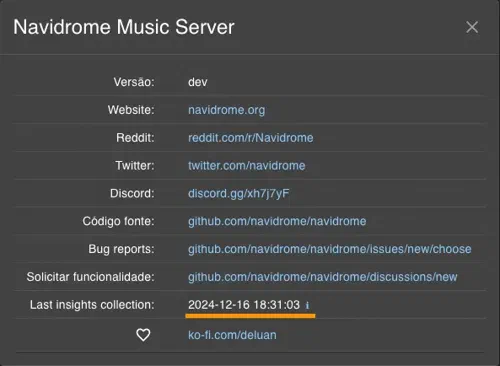
Sent Insights data (for details see http://navidrome.org/docs/getting-started/insights data="{\"id\":\"4c457065-101a-435a-b158-244b573579cd\",\"version\":\"0.53.3-SNAPSHOT (7f47e0a53)\",\"uptime\":0,\"build\":{\"settings\":{\"-buildmode\":\"exe\",\"-compiler\":\"gc\",\"-ldflags\":\"-extldflags '-static -latomic' -w -s -X github.com/navidrome/navidrome/consts.gitSha=7f47e0a53 -X github.com/navidrome/navidrome/consts.gitTag=v0.53.3-SNAPSHOT\",\"-tags\":\"netgo\",\"CGO_ENABLED\":\"1\",\"GOAMD64\":\"v1\",\"GOARCH\":\"amd64\",\"GOOS\":\"linux\",\"vcs\":\"git\",\"vcs.modified\":\"true\",\"vcs.revision\":\"7f47e0a5373d1ea067de8929c828ee0cd85a0795\",\"vcs.time\":\"2024-12-15T02:01:46Z\"},\"goVersion\":\"go1.23.4\"},\"os\":{\"type\":\"linux\",\"distro\":\"qts\",\"version\":\"5.2.2\",\"arch\":\"amd64\",\"numCPU\":4},\"mem\":{\"alloc\":2750544,\"totalAlloc\":9076584,\"sys\":14243080,\"numGC\":4},\"fs\":{\"music\":{\"type\":\"ext2/ext3/ext4\"},\"data\":{\"type\":\"ext2/ext3/ext4\"},\"cache\":{\"type\":\"ext2/ext3/ext4\"},\"backup\":{\"type\":\"ext2/ext3/ext4\"}},\"library\":{\"tracks\":85200,\"albums\":6255,\"artists\":1319,\"playlists\":26,\"shares\":19,\"radios\":7,\"activeUsers\":1},\"config\":{\"logLevel\":\"debug\",\"transcodingCacheSize\":\"100GB\",\"imageCacheSize\":\"50GB\",\"enableArtworkPrecache\":true,\"enableDownloads\":true,\"enableSharing\":true,\"enableStarRating\":true,\"enableLastFM\":true,\"enableListenBrainz\":true,\"enableMediaFileCoverArt\":true,\"enableSpotify\":true,\"enableCoverAnimation\":true,\"sessionTimeout\":\"168h0m0s\",\"recentlyAddedByModTime\":true,\"backupSchedule\":\"5 4 * * *\",\"backupCount\":5,\"devActivityPanel\":true,\"defaultBackgroundURL\":true}}" server="https://insights.navidrome.org/collect" status="200 OK" - UI Indicator: You will be able to see the last submission date/time in the About dialog:
How to Opt-Out
Data collection is enabled by default, but you can disable it anytime, by setting the new config option
EnableInsightsCollector (or ND_ENABLEINSIGHTSCOLLECTOR env var) to false. If you have EnableExternalServices
set to false, it will also disable the insights collection.
Detailed instructions will be provided in the release notes.
Data Collection Server
The data collection server is open-source and hosted by the Navidrome project, ensuring secure, in-house handling. Check it out: Navidrome Insights Server.
Thank You for Your Support
By allowing anonymous usage statistics, you’re contributing to the future of Navidrome. Your trust is invaluable, and if you’re uncomfortable, you can always opt out—no questions asked.
For questions or concerns, feel free to reach out via:
Thank you for being part of the Navidrome community!
Deluan
Navidrome Developer