This is the multi-page printable view of this section. Click here to print.
Integration
1 - External Integrations
Last.fm
Navidrome can use Last.fm to retrieve artists biographies, top songs, similar artists and album covers. It can also
send your scrobbles to Last.fm. For these features to work, you’ll need to set the
config options
LastFM.ApiKey and LastFM.Secret. You can obtain these values by creating a free API account in Last.fm:
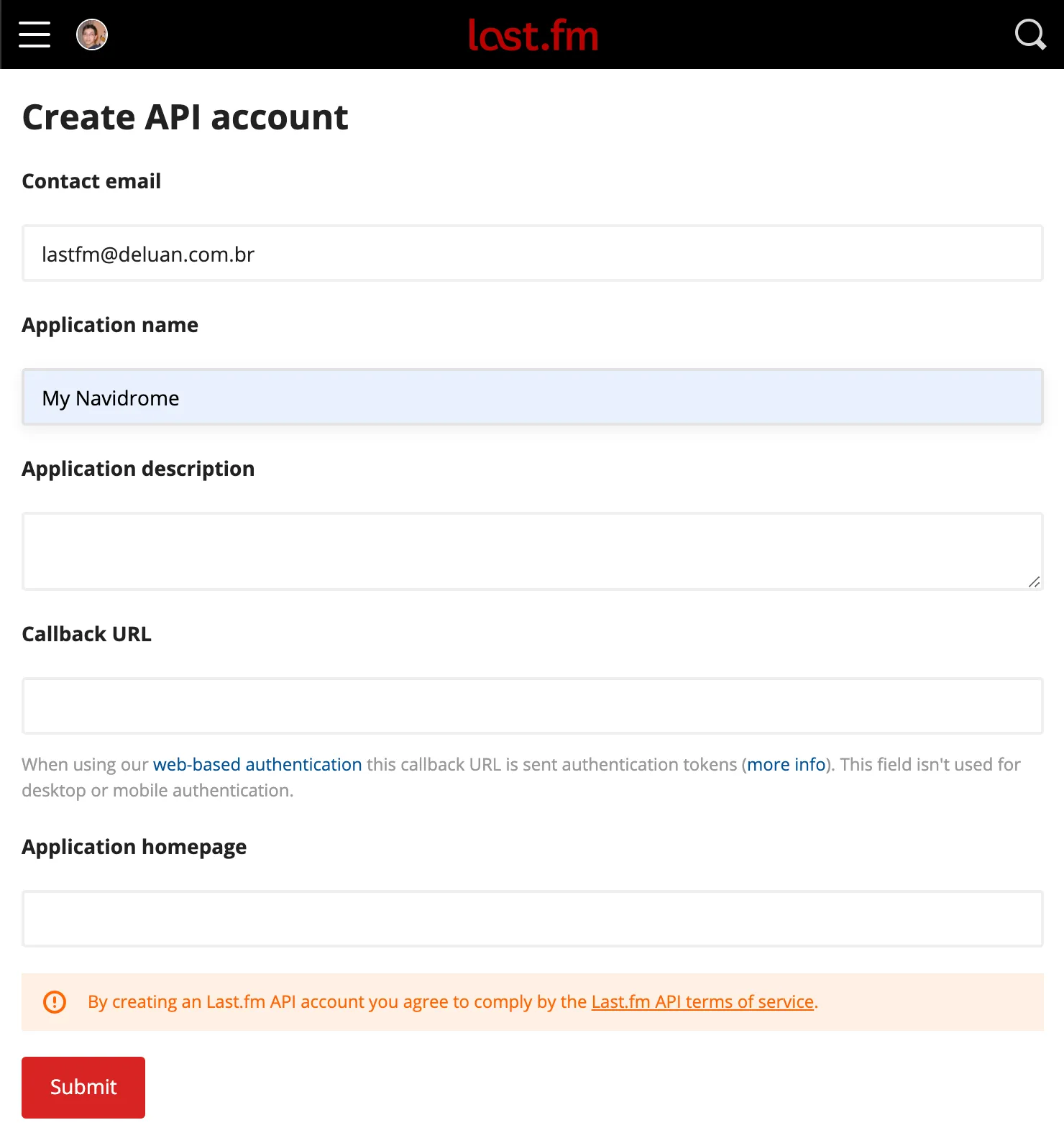
- Go to https://www.last.fm/api/account/create and create an API account. Only the Application Name field is mandatory:
- After submitting the form, you can get the API Key and Shared Secret from the Account Created page:
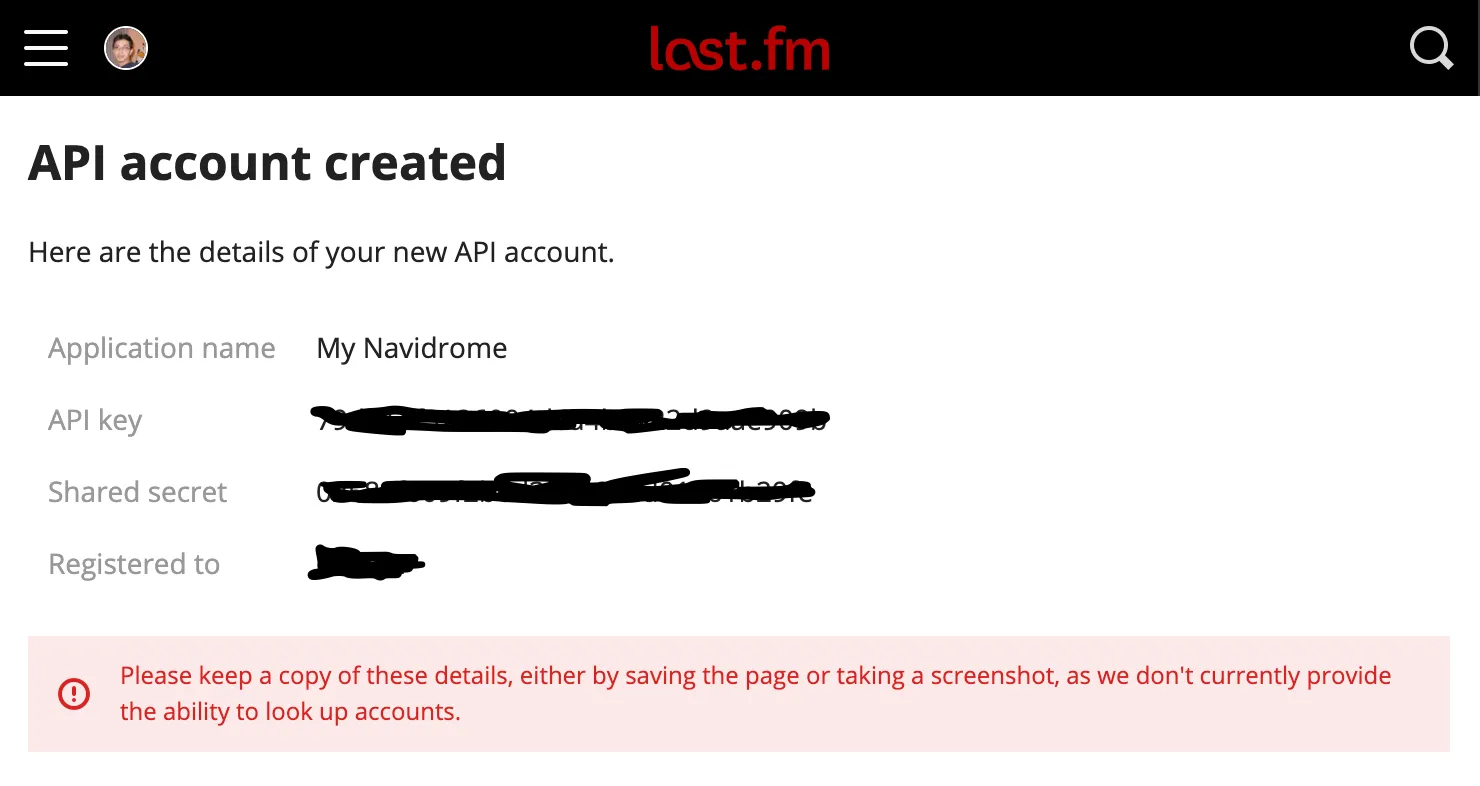
- Copy the values above to your configuration file as
LastFM.ApiKeyandLastFM.Secret(or set them as environment variablesND_LASTFM_APIKEYandND_LASTFM_SECRET) - After the configuration is done, you can set up scrobbling for your user.
Spotify
Artist images can be retrieved from Spotify. You’ll need to set the config options Spotify.ID and Spotify.Secret.
To obtain these values, create a free account in Spotify, then follow these steps:
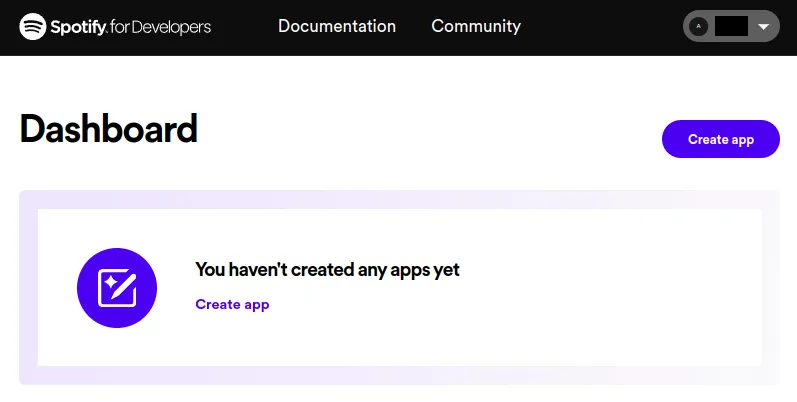
- Click on the “Create app” button in Spotify’s Developer dashboard: https://developer.spotify.com/dashboard/applications:
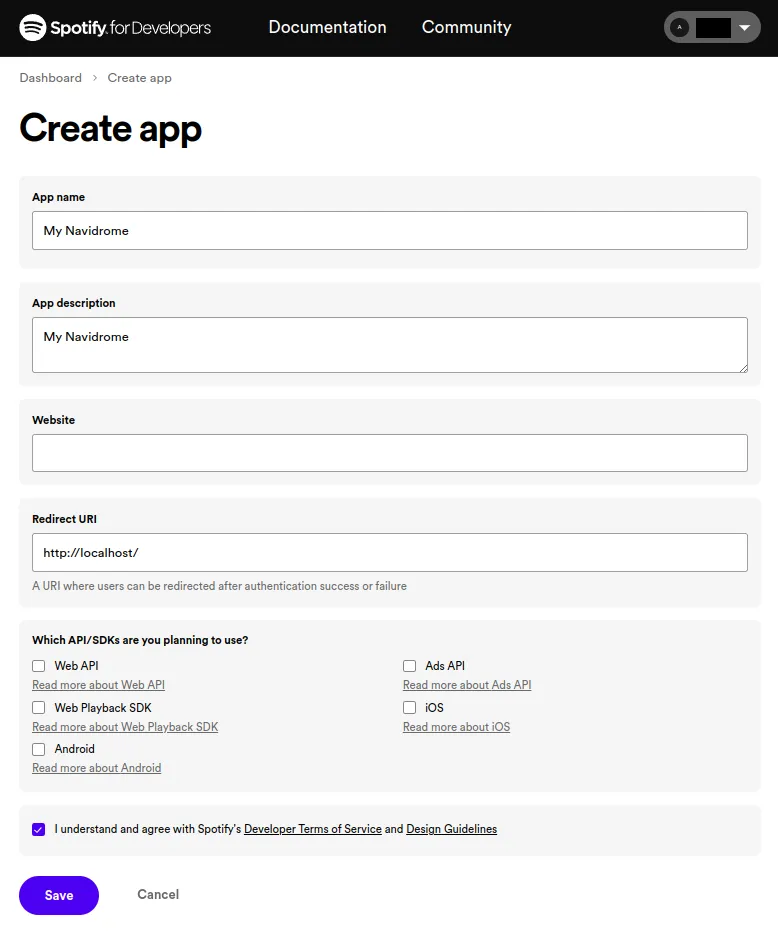
- Fill the name and description fields, fill the “Redirect URI” field with
http://localhost/and click on the “Save” button:
- Go to “Settings”:
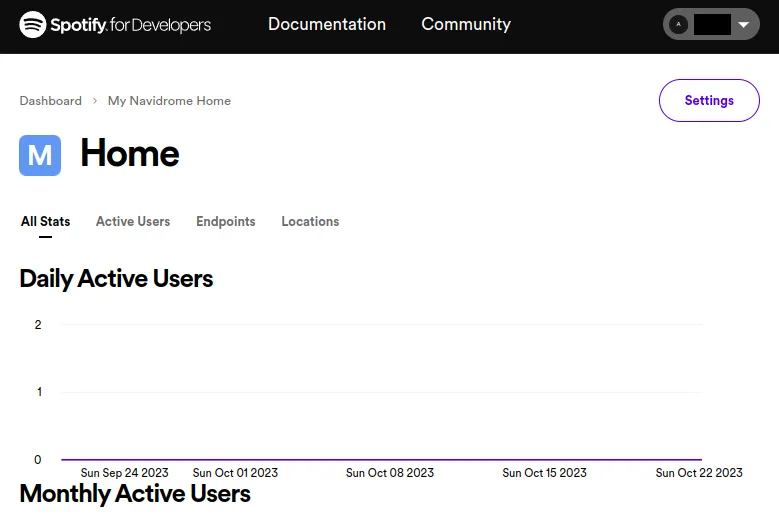
- Click “View client secret”:
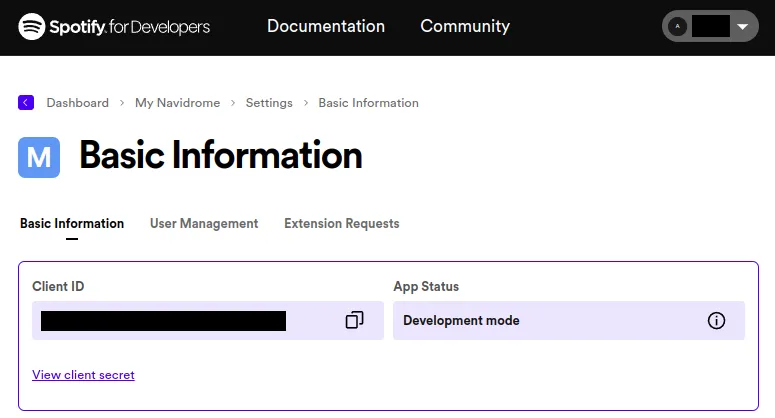
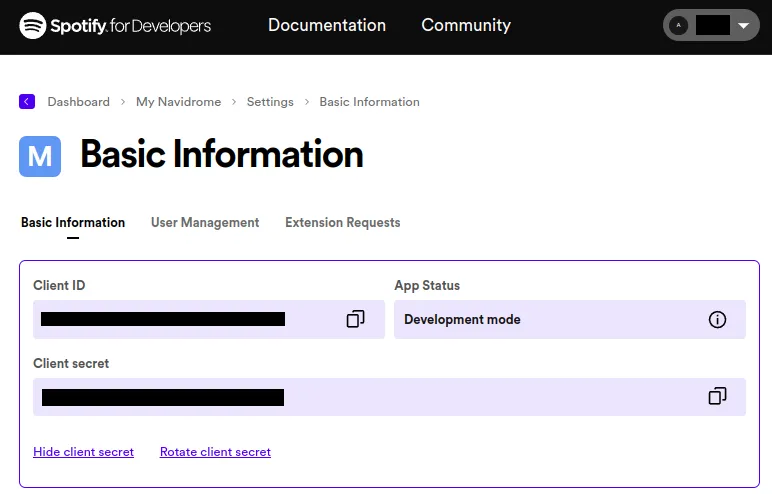
- Copy the values of ID and secret to your configuration file as
Spotify.IDandSpotify.Secret(or set them as environment variablesND_SPOTIFY_IDandND_SPOTIFY_SECRET):
Deezer
Navidrome can use Deezer’s API to retrieve artist images. Unlike Last.fm and Spotify, Deezer’s public API for artist images doesn’t require API keys or authentication, making it the simplest external integration to set up.
The Deezer integration is enabled by default. If you want to disable it, you can set the configuration option Deezer.Enabled to false in your configuration file or set the environment variable ND_DEEZER_ENABLED to false.
2 - Externalized Authentication
For Beginners
Externalized authentication is a relatively advanced topic. You can check the Quick Start guide for a beginner-friendly introduction.Security Note
Navidrome works out of the box behind a reverse proxy without enabling externalized authentication.
You only need to enable externalized authentication if you want the proxy to handle the authentication. In other cases, enabling the feature without securing the reverse proxy configuration can leave your Navidrome setup vulnerable to impersonation attacks.
Configuration
Externalized authentication is disabled by default. To enable the feature, configure a trusted authentication source (your reverse proxy) with the ExtAuth.TrustedSources option. This option takes a comma-separated list of either:
- An IPv4 or IPv6 range in CIDR notation.
- An
@(at sign) when listening on a UNIX socket (see theAddressoption).
When enabled via the ExtAuth.TrustedSources option, Navidrome validates the requests’ source IP address against the ranges configured in ExtAuth.TrustedSources. If no range matches the address, externalized authentication is not used even if the authenticated user header is present (see below), and falls back to a standard authentication mechanism. For requests received through a UNIX socket, IPs can’t be validated and Navidrome will use the authenticated user header if and only if ExtAuth.TrustedSources contains @.
With externalized authentication enabled, Navidrome gets the username of the authenticated user from incoming requests’ Remote-User HTTP header. The header can be changed via the ExtAuth.UserHeader configuration option.
If a user is successfully authenticated by the proxy but does not exist in the Navidrome database, it will be created with a random password. The first user created in a fresh installation (whether through externalized authentication or direct login) will always be an admin user.
You might also be interested in the EnableUserEditing option, which allows disabling the User page that lets users change their Navidrome password.
Sharing endpoint
If you plan to use the Sharing feature, where you can create unauthenticated links to parts of your library, you’ll need to whitelist the /share/* URLs.
Subsonic endpoint
The subsonic endpoint also supports externalized authentication, and will ignore the subsonic authentication parameters (u, p, t and s) if the authenticated user header is present. If the header is absent or has an empty value, Navidrome will fall back to the standard subsonic authentication scheme.
If your reverse proxy does not support the standard subsonic authentication scheme, or if the subsonic clients you want to use don’t support an alternate authentication mechanism also supported by your proxy (such as BasicAuth), you can still configure your proxy to bypass authentication on /rest/* URLs and let Navidrome perform authentication for those requests. In that case, your users will have to update their (initially random) password in Navidrome, to use it with their subsonic client.
Note
Most reverse proxies and authentication services don’t support the subsonic authentication scheme out of the box.
A handful of clients claim to support BasicAuth (e.g. DSub and Symfonium on Android, and play:Sub on iOS), but even then it might not work as you expect (as it is not standardized by the subsonic specification): you will likely need to generate a subsonic error response instead of a proper BasicAuth authentication failure response. Otherwise, some clients might display an unexpected error such as “server unreachable” when the credentials are incorrect, and other clients might refuse to connect altogether even with valid credentials.
Navidrome Web App
The Navidrome web app uses a mix of internal and subsonic APIs, and receives subsonic credentials from the server to use for requests against the subsonic API. As the credentials received from the server likely won’t match those in your dedicated authentication service, you need to handle subsonic requests from the Navidrome web app (identified as the subsonic client NavidromeUI via the c query parameter) in a special way. You can either:
- Ignore the subsonic authentication parameters and authenticate those requests the same way as non-subsonic requests. This relies on the fact that requests to the subsonic API will look the same to the proxy as requests to the internal API (e.g. same session cookies).
- Bypass authentication on your proxy for those requests and let Navidrome handle it. This relies on the fact that the web app receives the subsonic credentials from the server when it loads, and it can load only if the proxy has already authenticated the user.
Note that if you don’t intend to support third-party subsonic clients, you can simply place the subsonic endpoint behind the same protection rule as the rest of the application, i.e. you don’t need any special handling to bypass authentication.
Security
Make sure to check the externalized authentication section in the dedicated Security Considerations page.
Examples
For the examples below, it is assumed that you are familiar with the various products in use, i.e. reverse proxy, authentication service but also Navidrome.
The examples focus on the integration between the products, and provide configuration snippets stripped down to the relevant parts, which you can adapt to the specifics of your deployment.
Caddy with forward_auth
In this example, Navidrome is behind the Caddy reverse proxy, and Authentik is used to authenticate requests, with the help of Caddy’s forward_auth middleware.
Caddyfile excerpt stripped down to the relevant parts:
example.com

reverse_proxy /outpost.goauthentik.io/* http://authentik:9000

@protected not path /share/* /rest/*
forward_auth @protected http://authentik:9000 {
  uri /outpost.goauthentik.io/auth/caddy
  copy_headers X-Authentik-Username>Remote-User
}

# Authentik uses the Authorization header if present, so should be able to
# authenticate subsonic clients that support BasicAuth. Requests from the
# Navidrome Web App will be authenticated via the existing session cookie.
# If you want to have Navidrome authenticate subsonic requests, remove this
# forward_auth block.
@subsonic path /rest/*
forward_auth @subsonic http://authentik:9000 {
  uri /outpost.goauthentik.io/auth/caddy
  copy_headers X-Authentik-Username>Remote-User

  # Some clients that claim to support basicauth still expect a subsonic
  # response in case of authentication failure instead of a proper basicauth
  # response.
  @error status 1xx 3xx 4xx 5xx
  handle_response @error {
    respond <<SUBSONICERR
      <subsonic-response xmlns="http://subsonic.org/restapi" status="failed" version="1.16.1" type="proxy-auth" serverVersion="n/a" openSubsonic="true">
        <error code="40" message="Invalid credentials or unsupported client"></error>
      </subsonic-response>
      SUBSONICERR 200
  }
}

reverse_proxy navidrome:4533
Note that if you want to whitelist the unprotected paths as part of your Authentik configuration instead of doing it in Caddy, the copy_headers subdirective won’t work as expected: Authentik won’t set the X-Authentik-Username header for whitelisted paths, but Caddy will still copy the header with an incorrect value. In order to make it work, you need a workaround:
forward_auth http://authentik:9000 {
  uri /outpost.goauthentik.io/auth/caddy
  # copy_headers subdirective removed
}

# Only set the Remote-User header if the request was actually authentified (user
# header set by Authentik), as opposed to whitelisted (user header not set).
@hasUsername `{http.reverse_proxy.header.X-Authentik-Username} != null`
request_header @hasUsername Remote-User {http.reverse_proxy.header.X-Authentik-Username}
Traefik with ForwardAuth
In this example, Navidrome is behind the Traefik reverse proxy, and Authelia is used to authenticate requests, with the help of Traefik’s ForwardAuth middleware. Each service has its own subdomain. Docker Compose is used to deploy the whole thing.
The error response rewriting for subsonic authentication failure is not implemented, which means that subsonic clients are expected to handle correctly BasicAuth error responses (HTTP 401 with WWW-Authenticate header).
docker-compose.yml excerpt stripped down to the relevant parts:
services:
  authelia:
    image: authelia/authelia:4.38.8
    labels:
      # The login page and user dashboard need to be reachable from the web
      traefik.http.routers.authelia.rule: Host(`auth.example.com`)
      traefik.http.routers.authelia.entrypoints: https
      # Standard authentication middleware to be used by web services
      traefik.http.middlewares.authelia.forwardauth.address: http://authelia:9091/api/verify?rd=https://auth.example.com/
      traefik.http.middlewares.authelia.forwardauth.authResponseHeaders: Remote-User
      # Basicauth middleware for subsonic clients
      traefik.http.middlewares.authelia-basicauth.forwardauth.address: http://authelia:9091/api/verify?auth=basic
      traefik.http.middlewares.authelia-basicauth.forwardauth.authResponseHeaders: Remote-User

  navidrome:
    image: deluan/navidrome:0.52.0
    labels:
      # Default rule which uses Authelia's web-based authentication. If you enable
      # navidrome's Sharing feature, you can configure Authelia to bypass
      # authentication for /share/* URLs, so you don't need an extra rule here.
      traefik.http.routers.navidrome.rule: Host(`music.example.com`)
      traefik.http.routers.navidrome.entrypoints: https
      traefik.http.routers.navidrome.middlewares: authelia@docker
      # Requests to the subsonic endpoint use the basicauth middleware, unless
      # they come from the Navidrome Web App ("NavidromeUI" subsonic client), in
      # which case the default authelia middleware is used.
      traefik.http.routers.navidrome-subsonic.rule: Host(`music.example.com`) && PathPrefix(`/rest/`) && !Query(`c`, `NavidromeUI`)
      traefik.http.routers.navidrome-subsonic.entrypoints: https
      traefik.http.routers.navidrome-subsonic.middlewares: authelia-basicauth@docker
    environment:
      # Navidrome does not resolve hostnames in this option, and by default
      # traefik will get assigned an IP address dynamically, so all IPs must be
      # trusted.
      # This means that any other service in the same docker network can make
      # requests to navidrome, and easily impersonate an admin.
      # If you assign a static IP to your traefik service, configure it here.
      ND_EXTAUTH_TRUSTEDSOURCES: 0.0.0.0/0
      # Since authentication is entirely handled by Authelia, users don't need to
      # manage their password in Navidrome anymore.
      ND_ENABLEUSEREDITING: false
If you want to add support for the subsonic authentication scheme in order to support all subsonic clients, you can have a look at the Traefik plugin BasicAuth adapter for Subsonic which transforms subsonic authentication parameters into a BasicAuth header that Authelia can handle, and performs the error response rewriting.
3 - Monitoring Navidrome
Currently, Navidrome supports monitoring and alerting using Prometheus/OpenMetrics standard. Example Grafana dashboard:

Overview
Prometheus is a service that takes data from a metrics endpoint and collects it. Grafana is a dashboard service that can take data from a Prometheus server and display it. Navidrome has an easy way to create a metrics endpoint that Prometheus can use. Once you point Prometheus to this endpoint, and Grafana to your Prometheus server, you will be able to monitor your Navidrome instance.
The easiest way to do this is using docker-compose and Docker networks.
Configuration
You need to set ND_PROMETHEUS_ENABLED to enable Prometheus metrics endpoint.
Setting custom ND_PROMETHEUS_METRICSPATH is highly recommended if your Navidrome
instance is publicly available.
Minimal docker compose example file with metrics enabled, and Prometheus and Grafana containers:
version: '3'
services:
  navidrome:
    image: deluan/navidrome
    user: 1000:1000 # should be owner of volumes
    ports:
      - "4533:4533"
    environment:
      ND_PROMETHEUS_ENABLED: "true"
      ND_PROMETHEUS_METRICSPATH: "/metrics_SOME_SECRET_KEY"
    volumes:
      - "./data:/data"
      - "./music:/music"
    networks:
      - metrics-network
  prometheus:
    image: prom/prometheus
    container_name: prometheus
    command:
      - '--config.file=/prometheus/prometheus.yml'
    ports:
      - 9090:9090
    restart: unless-stopped
    volumes:
      - ./etc/prometheus:/etc/prometheus
      - ./prometheus:/prometheus
    networks:
      - metrics-network
  grafana:
    image: grafana/grafana
    container_name: grafana
    ports:
      - 3000:3000
    restart: unless-stopped
    environment:
      - GF_SERVER_ROOT_URL=<your external grafana endpoint here>
      - GF_SERVER_SERVE_FROM_SUB_PATH=false # if your external grafana endpoint has a subpath or not
    volumes:
      - ./etc/grafana:/etc/grafana/provisioning/datasources
    networks:
      - metrics-network
networks:
  metrics-network:
    driver: bridge
Example prometheus.yml config to parse this instance:
global:
  scrape_interval: 10s
scrape_configs:
  - job_name: 'navidrome'
    metrics_path: /metrics_SOME_SECRET_KEY
    scheme: http
    static_configs:
      - targets: ['navidrome:4533']
Dashboard
Grafana dashboard available here: #18038.
Simple to install but fully fledged Grafana docker compose configuration can be found here.